Setting up Windows for pwnable
Table of Contents
0x00. Introduction
After purchasing a new desktop and frequently reconfiguring the environment due to driver issues, I thought it would be nice to document the setup process for reference. The installation environment is Windows 11 + Ubuntu(WSL).
I’ll add more useful settings or tools as I discover them.
0x01. Windows
WSL
In Turn Windows Features On or Off, check the following items.
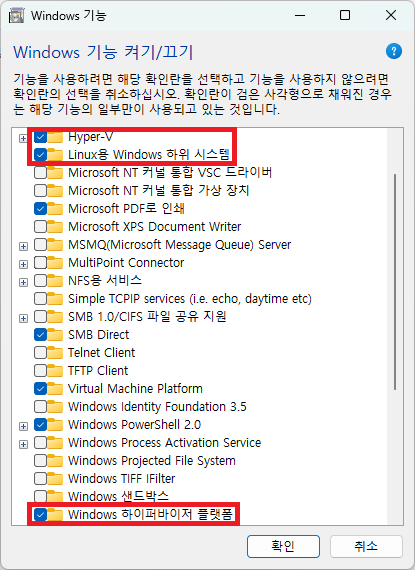
After restarting, execute these commands in the terminal.
# Install WSL
wsl --install

# Check available packages and versions
wsl --list --online

# Specific version
wsl --install -d Ubuntu-[xx.xx]
# Latest version
wsl --install -d Ubuntu
Visual Studio Code
Theme Settings
After installing the desired theme, press ctrl + shift + p -> Preferences: Color Theme -> Browse Additional Color Themes... to select it.
Keyboard Shortcuts
Press ctrl + shift + p -> Preferences: Open Keyboard Shortcuts(JSON) and paste the following. This is good when switching between editor and terminal.
This is more convenient when switching between multiple windows.
VMware
You need to register on the Broadcom official website. I had trouble because the verification email didn’t arrive when I thoughtlessly used my university email, so just use gmail.com to be safe.
- After logging in, select
Software->VMware Cloud Foundation->My Downloads - Find
VMware Workstation Proand select the desired release - Note that you must check
I agree to the Terms and Conditionsto enable the download button
Fill in the address field that appears and click the download button again to complete the installation.
IDA Free
While it only supports x86/x86-64 architectures, IDA is now available for free. On the hex-rays official website, select Products -> IDA Free and receive a license through email verification.
It seems fine now, but I once had an experience where it was too slow, and using a VPN to Belgium (where their headquarters is) made it much faster.
shell:sendto
Typing shell:sendto in the win + r run window lets you register programs that appear in the send to menu when right-clicking files.
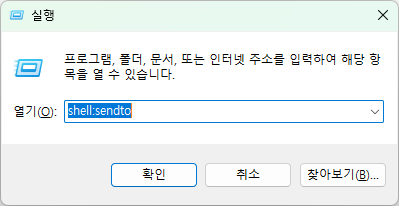
For example, create an IDA shortcut and place it in that folder. Then right-click a binary and select IDA from send to to analyze it directly. It’s a bit inconvenient in Windows 11 since you need to press Show more options to see it, but it’s quite useful.
You can apparently edit the registry to revert to the Windows 10 menu, but I skipped it to keep the new computer feeling.
0x02. Linux
Packages
# initialize
# oh my zsh
# zsh plugins
# python packages
# one gadget
# gef
jekyll
# Install dependencies
# Change the file according to your shell
# Install jekyll
# Execute in jekyll directory such as github.io repository
zola
# Download the latest version of zola (https://github.com/getzola/zola/releases)
# Execute in zola directory such as github.io repository